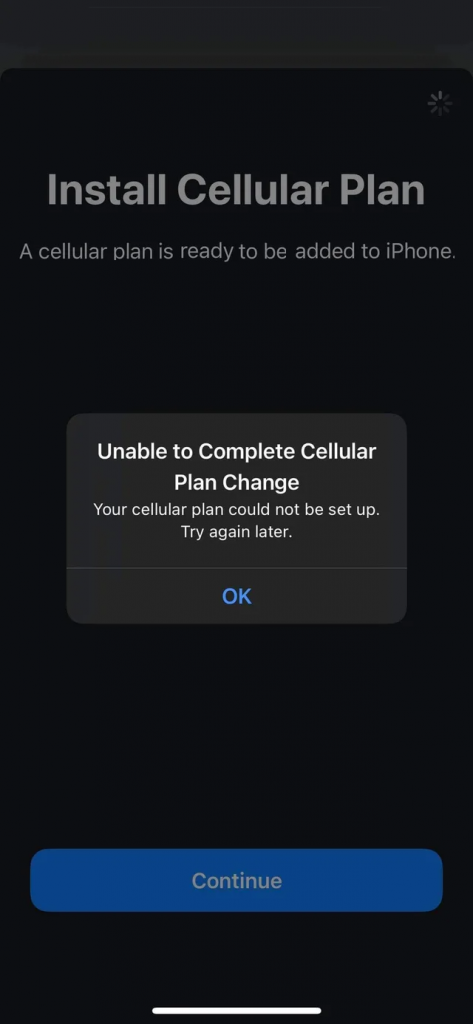
This message may appear when an eSIM installation fails for one of the following reasons:
1. Too many eSIMs are stored on your device
While many devices support multiple eSIM profiles, the number of active or stored eSIMs may be limited depending on your phone model. For example, iPhones can typically store between 5 and 10 eSIMs, depending on the device.
For exact limits, please refer to your device manufacturer's specifications.
If you've reached the maximum number of stored eSIMs, remove any unused eSIM profiles from your device before trying again. You can find instructions in: How do I remove an eSIM from my device?
2. Mobile data is disabled
Make sure that mobile data is enabled in your device settings before attempting to install the eSIM.
3. You're trying to install an eSIM that has already been added
Most eSIMs can only be activated once. If the eSIM has already been installed on your device, attempting to reinstall it may trigger this error.
To check whether the eSIM is already installed:
- Go to Settings → General → About.
- Scroll down to find the ICCID number (a 20-digit number beginning with 89...).
If the ICCID is visible, the eSIM is likely already installed, and only a few configuration adjustments may be needed to get the connection working properly. Detailed instructions can be found on your eSIM installation page.
4. Poor internet connection during installation
A weak or unstable internet connection can prevent the eSIM from being installed successfully. This commonly occurs when using public Wi-Fi networks, such as those on cruise ships, in airports, or other locations with unreliable connectivity.
If the issue persists after checking the above points, please contact our technical support team for assistance.